 CueCart
 Settings reference
Where every setting lives and what scope it applies to.
Account & Help · Updated 2026-07-24
CueCart keeps its settings in one place, organised into a handful of tabs. This page is a quick map: what each tab does, and — just as importantly — which scope a setting applies to, so you always know whether a change affects the whole app, the current Set, a single bank, or one cue.
Opening Settings
Open Settings from the gear icon in the title bar. That's the way in — the window opens on the Audio tab by default, since that's the one you'll reach for most often.
The Settings tabs
The tabs run down the left of the window. Each one gathers related options:
-
Instance — startup and instancing behaviour, plus linked-playback coordination for running more than one copy of CueCart at once. Leave this on its defaults unless you're deliberately running multiple instances.
-
Appearance — pick the app theme.
-
Audio — your output settings, split into three sub-sections:
- Device — choose your output device. CueCart uses Windows Audio (WASAPI) on Windows.
- Routing — set up output routing and assign devices to your headphone cue and matrix buses.
- Processing — the preset selector for CueCart's built-in audio processing.
See Audio setup for device modes and headphone cueing.
-
Library — manage your media library, split into three sub-sections:
- Media Storage — the cache location, your uploads folder, and your default Sets folder, plus your watched folders (the external sources CueCart scans and imports media from).
- Media Optimisation — toggles for the background optimise pass that makes triggers instant (decode-to-cache, waveform thumbnails, loudness, and more).
- Database — Reset Library, which clears the media database, watched
folders, uploaded copies, and the optimisation cache. Your original audio
files and
.cuecartSets are never deleted.
-
Backup — create a portable backup of your library, browse existing backups, and import from a package. See Packages for the full walk-through.
-
Tools — Set and storage maintenance: View Set History, Recently Deleted Sets, Storage Cleanup, and Repair Missing Media.
-
License — see your trial or lifetime status, activate a licence, and reach support. See Licensing for the full walk-through.
-
About — your CueCart version (currently 1.3.2), system requirements, and a Check for Updates button.
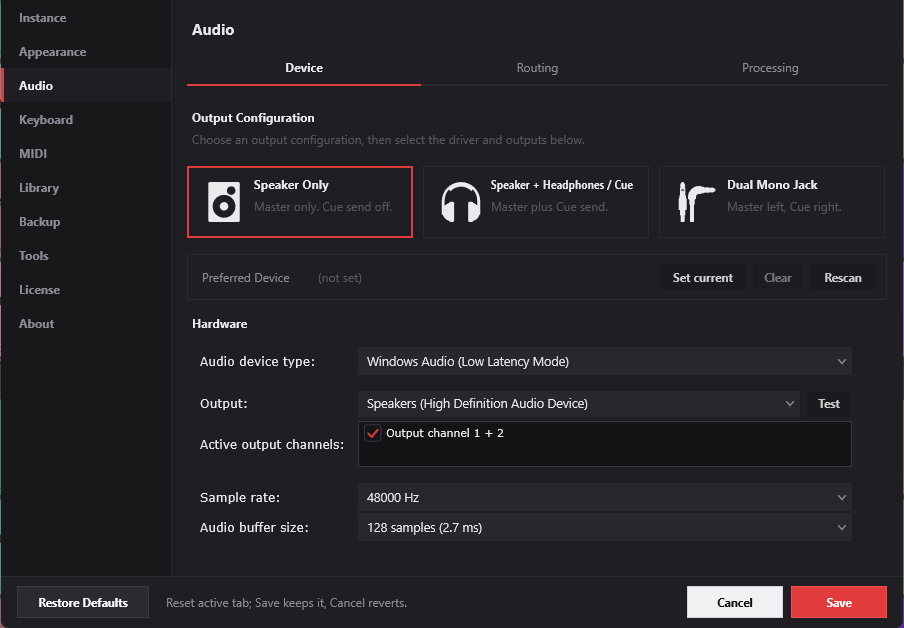 Choosing your audio device.
Setting scopes
Not every setting lives in the same place. Some belong to the app as a whole; others travel with your Set, a bank, or a single cue. Knowing the scope tells you what a change will and won't affect — and where to look when something isn't where you expected.
| Scope | Where it's set | What it covers | Examples |
| --- | --- | --- | --- |
| App-wide | Settings tabs | Applies to every Set on this machine | Audio device, processing preset, master volume |
| Per-Set | The Set itself | Travels with your .cuecart file | Layout, bank assignments, Set-wide cue defaults |
| Per-bank | The bank | Applies to one bank and the cues in it | Colour, routing, bank cue defaults |
| Per-cue | The Cue Editor | Applies to a single pad | Everything in the Cue Editor |
A couple of things worth keeping in mind:
- App-wide settings stay put when you open a different Set. Your audio device and master volume belong to the machine, not the show — so swapping Sets never reroutes your output or resets your level.
- Per-Set, per-bank and per-cue values travel with the content. They're saved inside your Set, which means they come along when you move a show to another machine in a package.
- More specific scopes win. A per-cue setting overrides the bank default, and a bank default overrides the Set-wide default — so you can set a sensible baseline once and only fine-tune the pads that need it.
Keyboard & MIDI
Trigger cues from the keyboard or a MIDI controller, and shape the keyboard to fit your show — positional QWERTY or a fully custom layout, pinnable per Set. See MIDI & keyboard control for the full picture and Triggering & going live for the live workflow.
Where to next
- Audio setup — devices, routing, and headphone cueing.
- Licensing — trials, activation, and moving machines.
- Packages — backing up and moving a show.
- Cue Editor — everything that lives at the per-cue scope.