 CueCart
 The main window at a glance
A guided tour of every region of the CueCart window.
Getting Started · Updated 2026-07-24
CueCart's window is laid out top to bottom: a slim title bar, a toolbar of live controls, and the cartwall in the middle — flanked by a library sidebar on the left and a DJ Deck sidebar on the right, with a status bar along the bottom. Here's what each part does.
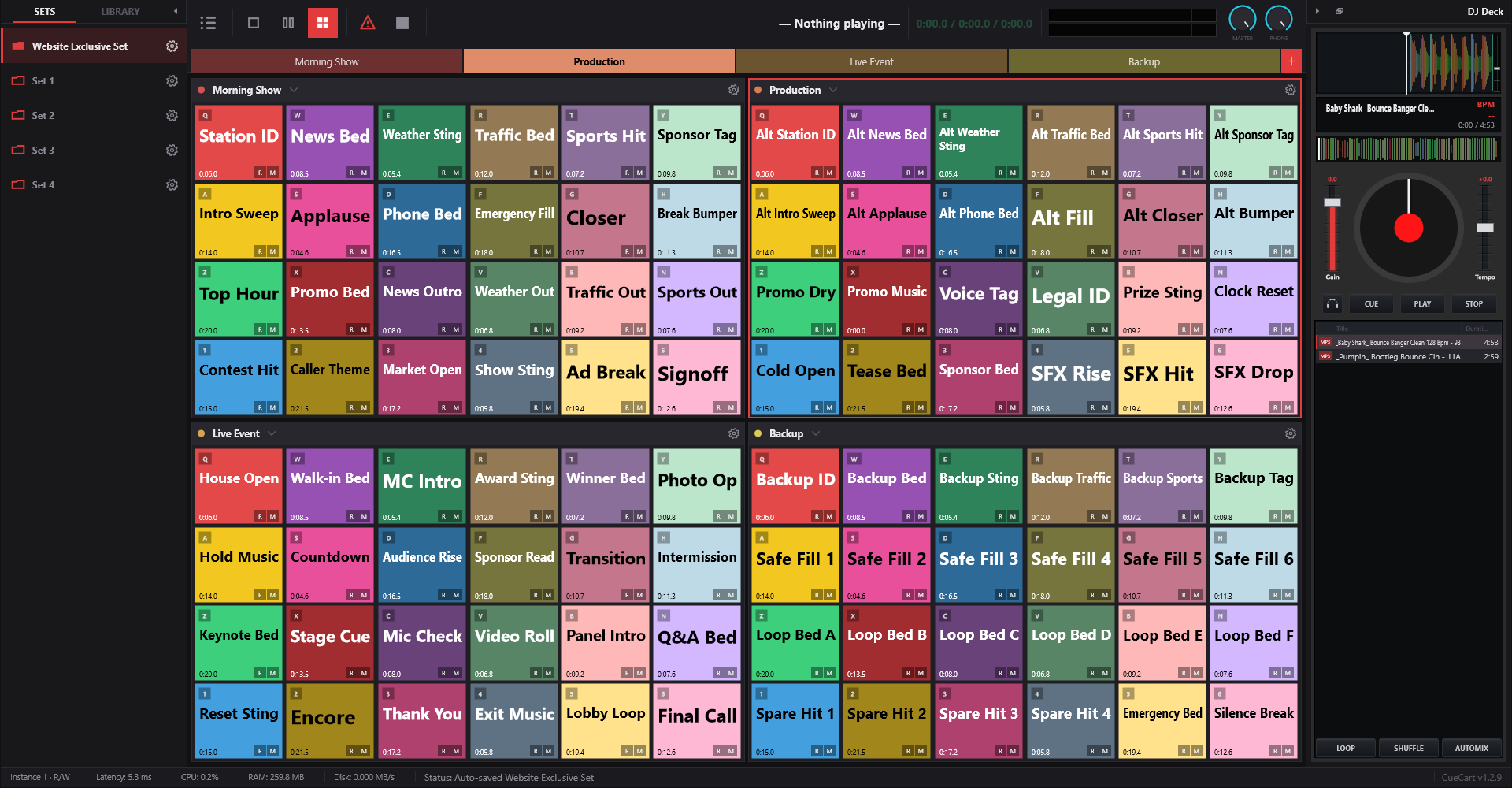 The CueCart 1.3.2 main window.
Title bar
Across the very top:
- The CueCart logo, on the left.
- The Settings gear and the standard minimise / maximise / close controls, on the right.
There are no menu titles up here — opening and saving shows, importing and exporting packages, changing the layout, and reaching Settings all live in the File menu on the toolbar (see below).
Drag any empty part of the title bar to move the window.
Toolbar
The toolbar holds the controls you reach for while a show is running, left to right:
- File menu — the icon button on the far left. It opens a single menu with everything for your show: New / Open / Save / Save As, bank import and export, the cartwall Layout (Single / Two / Four panels), Tools (set history, recently deleted, storage cleanup, repair missing media), Settings and Exit.
- Panic and Stop — Panic kills all audio instantly; Stop ends the cue pads that are playing.
- Now Playing — the active cue's name with its elapsed / total / remaining time. Click it to stop just that cue.
- VU meter — a live stereo output level.
- Master and Phone — your main output level and your headphone/cue level, each a rotary knob with its label (MASTER / PHONE) underneath.
 The toolbar: File menu, transport and master controls.
The cartwall
The centre of the window is the cartwall — your banks of cue pads. Depending on the layout you chose from the File menu, you'll see one, two or four bank panels at once. Each panel has a bank header — with a dropdown to switch which bank it shows — above a grid of pads, and a coloured bank tab strip runs across the top so you can jump between banks and add new ones.
Each cue pad shows its colour, name and duration, lights up while it plays, and can display its assigned key. Empty slots show a +, ready for you to drop audio onto them.
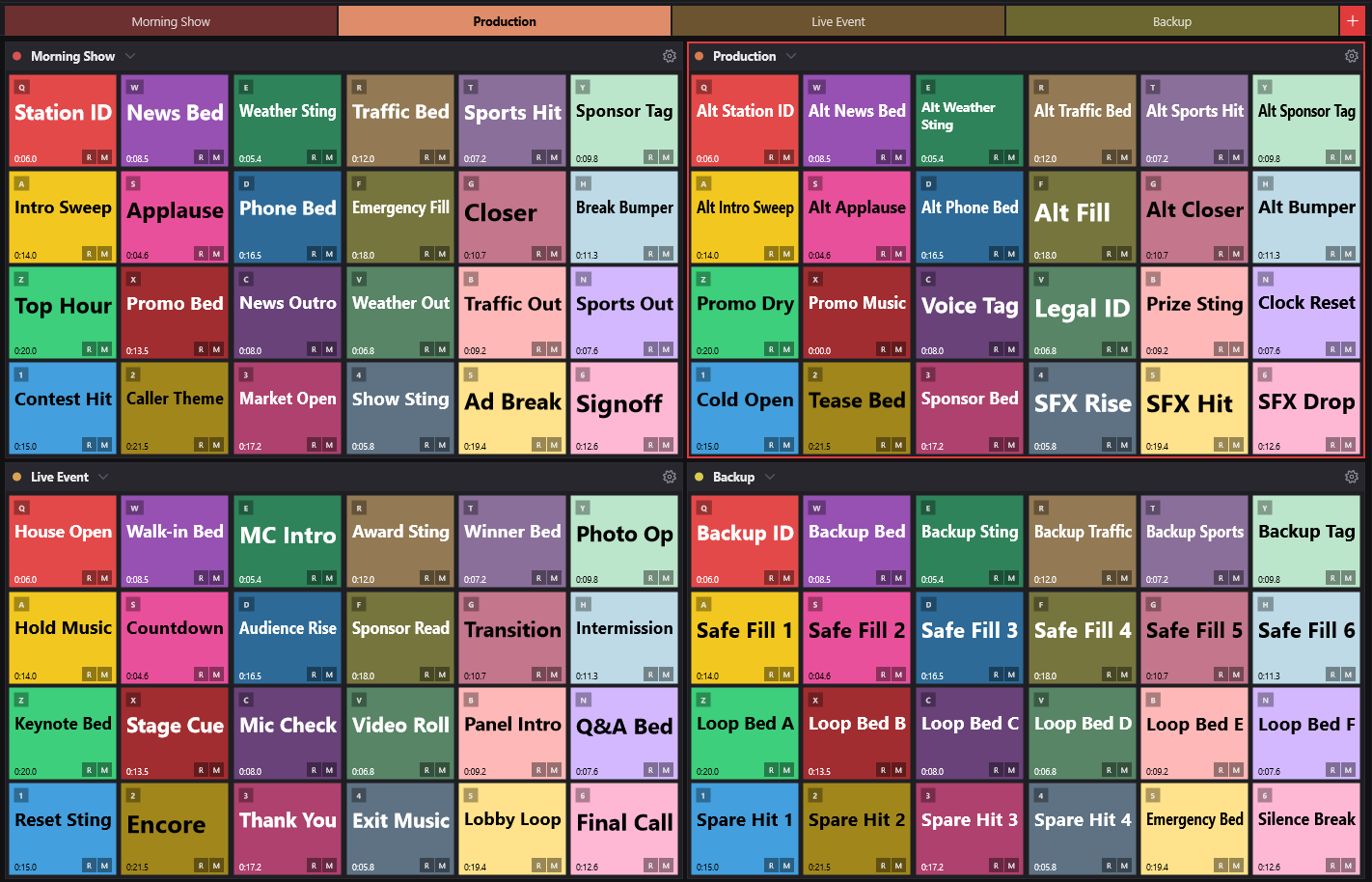 Populated cue-grid panels with auto-colour modes and duration labels.
Left sidebar — your sets and library
The collapsible sidebar on the left has two tabs:
- Sets — your saved shows, ready to open.
- Library — your imported media, to browse and drag onto pads.
Collapse it any time with the chevron in its header to give the cartwall more room.
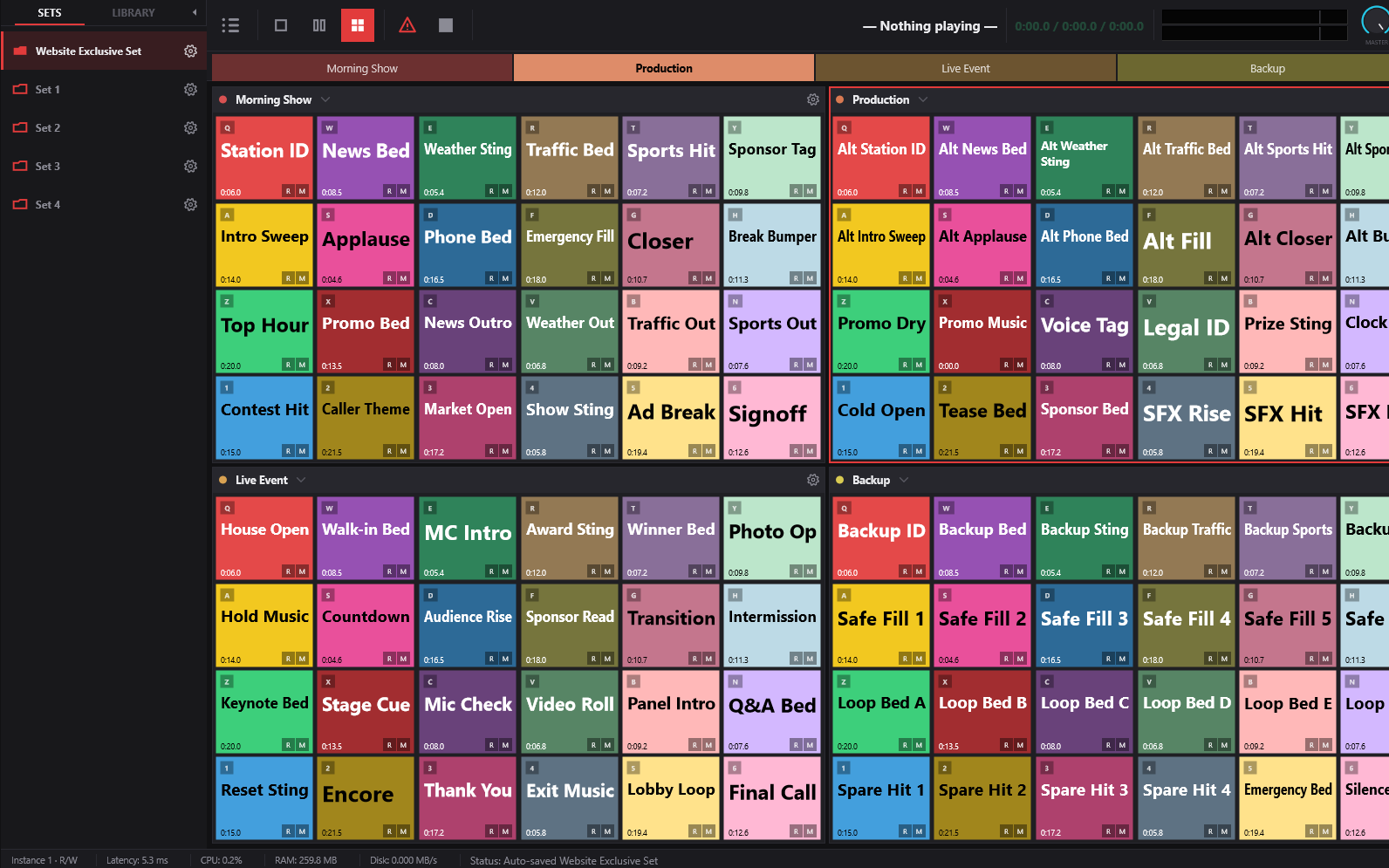 The Sets sidebar with a loaded show.
Right sidebar — the DJ Deck
The collapsible sidebar on the right is the DJ Deck — a self-contained player for auditioning and queueing tracks alongside your cues. Drag a row from the Library onto the deck (or build up its queue) and use its transport and waveform to cue tracks in your headphones without touching the cartwall. The deck is independent of your Set, so its queue stays put as you switch shows.
Like the left sidebar, the deck collapses on its own — use its header chevron to hide it and hand the space back to the cartwall.
Status bar
The strip along the bottom keeps you informed at a glance:
- Latency (for example 5.3 ms), and live CPU, RAM and Disk readouts.
- A Status: line that names the last thing you did — the activity message fills the space toward the right and shows in full.
- A small version stamp in the far corner. Long operations such as a package export show their progress here too.
 Status bar detail: instance mode, telemetry and activity.
Where to next
- Getting started — load audio and fire your first cue.
- Licensing & activation — your trial and licence.