 CueCart
 The Mixer
Mix Deck A and Deck B, balance Cue Pads, and control Master and headphone levels.
Audio · Updated 2026-10-06
The Mixer is a dedicated view alongside Deck A and Deck B in the DJ workspace. Show the workspace from the navigation rail, then select Mixer.
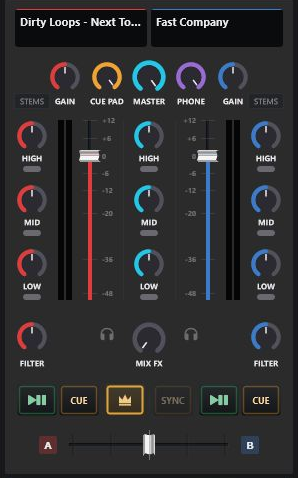
Deck channels and crossfader
Each deck channel has Gain, Filter, three-band EQ with band mutes, a channel Volume fader and a level meter. Gain sets the incoming level; Volume controls the channel's contribution to the mix. The channel meter reads before its volume fader, so a moving meter alone does not mean the channel is audible.
Use the A/B crossfader to blend between the decks. Channel CUE, Play/Pause, SYNC and leader controls operate the same decks shown in their individual views.
The headphone button sends the selected deck to the headphone bus instead of Master. Turn it off when you want that deck back in the programme output. Configure the physical outputs in Audio setup.
Master, Cue Pad and Phone
- MASTER scales output, including the headphone and matrix buses.
- CUE PAD balances the cartwall's pad audio against the deck mix.
- PHONE is a separate headphone trim. MASTER also scales that bus, so setting MASTER to zero silences headphones too.
- The Master EQ shapes the programme mix, with mutes for its three bands.
- MIX FX controls Echo Out.
The toolbar's Cue Grid meter describes pad audio. The title bar's Master display describes the Master bus; use the appropriate meter for the source and routing you are checking.
Stems in the Mixer
After activating Stems and preparing a deck's track, enable that channel's STEMS mode. Its three EQ rows become stem level groups:
- VOCAL — vocals.
- INS — other instruments.
- DRUMS — drums and bass together.
The deck's STEMS pads provide four separate mutes for vocals, drums, bass and other instruments. The Mixer provides three level groups, so its DRUMS knob does not independently adjust bass.
Cue Pad concurrency and the decks
M / Multi Pad allows layering; O / One at a Time makes an exclusive start interrupt competing Cue Pad playback. The deck concurrency choice coordinates deck playback with Cue Pads. Deck A and Deck B can still play together for mixing; O does not make the two decks stop each other.
Where to next
- DJ decks — load tracks, use SYNC and build playlists.
- Audio setup — devices and headphone routing.
- Processing — app-wide Master-bus processing presets.