 CueCart
 Packages, file types & sharing
Bundle a show with its audio to move it between machines.
Sharing · Updated 2026-07-24
A CueCart show lives in a single working file on your machine. When it's time to move that show somewhere else — a different PC, a backup drive, a colleague's laptop — you bundle it into a package that carries the audio along with it. This page covers the file types you'll meet and how to share a show cleanly.
The CueCart file types
CueCart works with a small, deliberate set of file types:
.cuecart— your editable Set. This is the working file you open and save as you build a show. It holds your banks, cues, colours and settings, but it references your audio rather than embedding it. Keep this on the machine where you're producing the show. See Working with Sets for the full lifecycle..cuecartpkg— a portable package. This bundles a Set and its audio into one container, so the whole show travels to another machine and plays without hunting for missing files. This is the format you reach for whenever a show needs to leave the machine it was built on..cuecartset— a legacy package alias. Older shows may arrive as.cuecartset. CueCart still imports these; treat them as a package, the same as a.cuecartpkg.
The short version: edit in .cuecart, share in .cuecartpkg.
Exporting a package
When you want to hand a show off, export it as a package from the Packages menu. CueCart can export at three levels, so you only carry as much as you need:
- The current Set — the whole show, every bank and cue, with its audio.
- A selected Bank — a single page of pads on its own, audio included.
- A Bank Collection — a chosen group of banks bundled together.
Each of these writes a single .cuecartpkg file. Because the package embeds the
audio, the resulting file is everything the receiving machine needs — there are
no loose files to send alongside it.
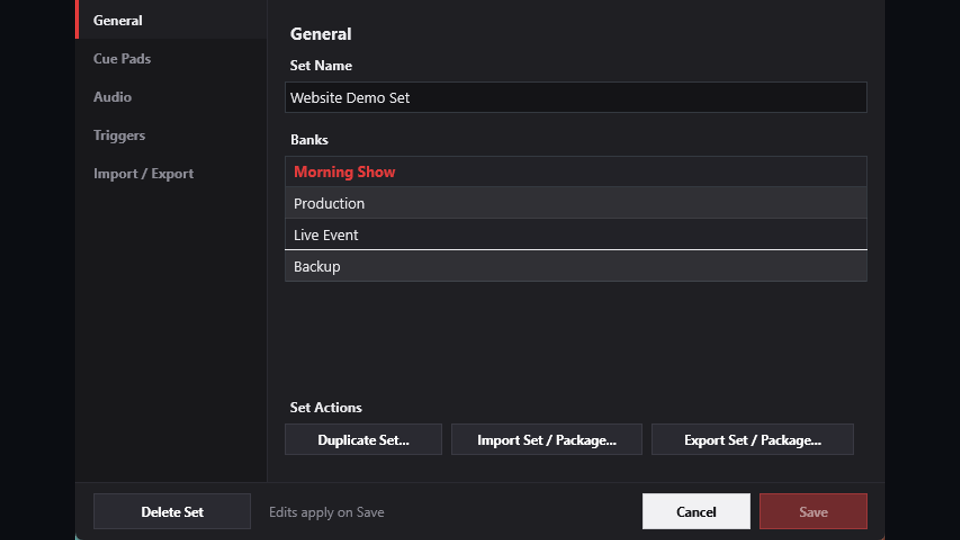 Set Settings includes the Set/package import and export actions.
Importing with the preview
To bring a package in, choose Import from the Packages menu and pick the
.cuecartpkg (or legacy .cuecartset) file.
CueCart reads the package first and shows you an import preview before anything changes. The preview reads the package type — whether it's a Set, a Bank or a Bank Collection — and tells you what you're about to bring in. Nothing is imported until you confirm, so you can always look before you leap and cancel if it isn't the package you expected.
Double-click behaviour
CueCart's file types are wired into Windows, so a double-click does the right thing for each one:
- Double-click a
.cuecartand CueCart opens that Set, ready to play. - Double-click a
.cuecartpkgand CueCart opens the import preview for it — the same confirm-before-import flow described above.
That difference is the whole mental model: a .cuecart is a show you open and
work on, and a .cuecartpkg is a show you bring in.
Where to next
- Working with Sets — opening, saving and managing your shows.
- Banks — organising your show across pages of pads.
- The Media Library — how CueCart organises your audio.