 CueCart
 Cue Pads
Load audio onto pads and read a pad at a glance.
Your Show · Updated 2026-07-24
A cue pad is the heart of CueCart: a single pad that plays one audio clip. You fill a grid of them, then fire each one the instant you tap it or press its key. This page covers getting audio onto a pad, reading what a pad is telling you, and the quick actions you'll reach for live.
Assigning audio to a pad
There are a few quick ways to load a clip onto a pad:
- Drag and drop an audio file from Windows Explorer straight onto the pad to import it.
- Ctrl-drag from the library — find a track in the Media Library and Ctrl-drag it onto the pad you want.
- Hover an empty pad and click the +, then pick a file. Empty pads reveal a + on hover so you can see at a glance where there's room.
You can also Ctrl-drag a cue onto the DJ Deck, move a cue to a new slot, and more — see Drag & drop for the full set.
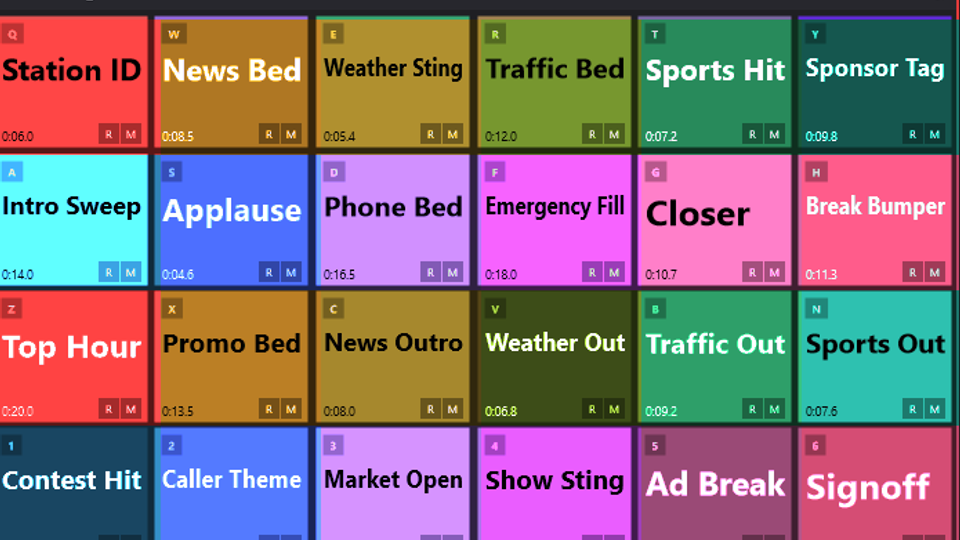
Assigned pads show names, keys, durations and routing at a glance.
Each clip is prepared and held ready in memory, so the pad fires with no spin-up — even the first time you hit it.
What a pad shows you
A filled pad is designed to be read in a glance, from across a studio. It shows:
- Its colour, so you can group and spot cues fast.
- Its name and the clip's duration.
- A clear lit-up state while it's playing.
- Its assigned key, when you've mapped one — so you don't have to memorise the grid.
- Small status chips for its play mode, behaviour and concurrency, so you can confirm how a pad will behave before you fire it.
An empty slot reveals the + on hover, ready for you to drop or assign a clip.
Quick actions
Right-clicking a pad gives you fast, no-menu access to the things you do most:
- Right-click a filled pad to open the Cue Editor — where you set its colour, name, key, playback behaviour, routing and trim.
- Right-click an empty pad's + to assign a file.
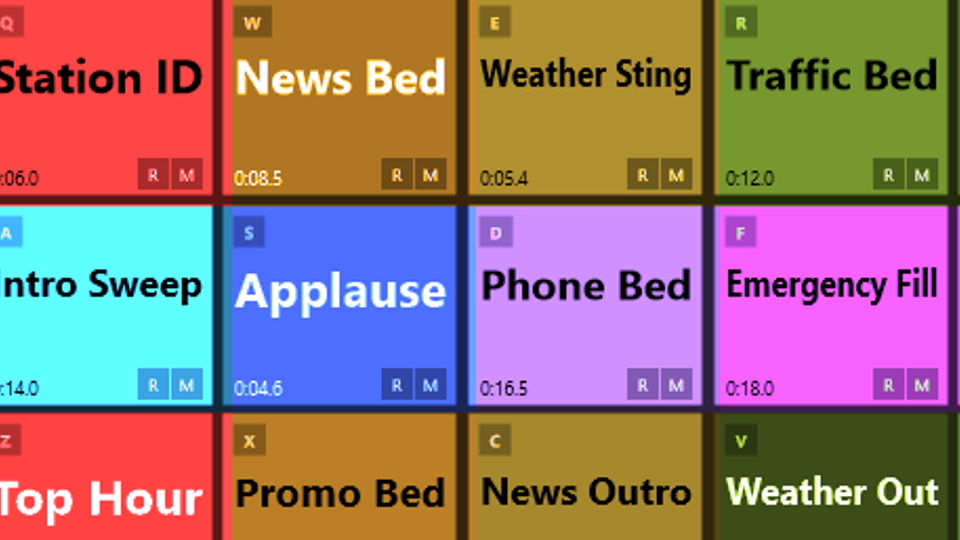
Right-click a filled pad to edit it; right-click an empty + slot to assign a file.
To clear a pad you no longer need, Ctrl+Alt+click it — CueCart asks you to confirm first, so an accidental key mash never drops your work.
Supported audio formats
CueCart plays the formats you'll meet in broadcast and live work:
- WAV
- AIFF
- FLAC
- MP3
- Ogg Vorbis
- AAC (
.m4a,.aac,.m4b)
Drop any of these onto a pad and it's ready to fire. (Video containers such as
.mp4 aren't supported — CueCart is audio-only.)
Where to next
- The Cue Editor — colour, name, key, fades, routing and the waveform trimmer.
- Banks — arrange your pads across named pages.
- Triggering & going live — keys, clicks and the panic stop.