 CueCart
 Working with Sets
Create, open, save and manage your show files.
Your Show · Updated 2026-07-24
A Set is your whole show in a single file. Open one and CueCart is ready to play — all your banks, cues, colours and settings come back exactly as you left them. This chapter covers creating, opening, saving and managing your Sets.
What a Set is
A Set is saved as one .cuecart file. Under the hood it's a small SQLite
database, but you treat it as a single document: it holds every bank, every
cue, your pad colours, and all the Set's settings. Because everything
lives in one file, you can copy, back up or move a Set just like any other
document.
One Set is open at a time — but you can switch between your saved Sets live, at any moment, without closing CueCart (more on that below). When you want a portable copy that bundles your audio as well, you export a package instead — see Packages.
The Sets menu
Everything you do with a Set file lives under the Sets menu in the title bar:
- New Set — start a fresh, empty Set.
- Open Set — open an existing
.cuecartfile. - Save (Ctrl+S) — save your changes back to the current file.
- Save As (Ctrl+Shift+S) — save a copy under a new name or location, and keep working in that copy.
If you're new to banks and cues, start with Banks and Cue Pads to build out the Set you've just created.
Switch Sets live
You're never locked into one show for the session. Every Set you've saved sits in the Sets tab of the sidebar, ready to open — so you can change shows on the fly, even between segments of a live broadcast. Pick a different Set and CueCart loads it, with its banks, cues and colours back exactly as you left them and your cues prepared and ready to fire.
That makes it easy to keep a separate Set for each job — a breakfast show, a news bulletin, an outside broadcast — and move between them without ever closing the app or stopping for a restart. Save the Set you're leaving first (the unsaved-changes guard will catch you if you forget), then switch.
Banks vs Sets. Switching banks within a Set is instant and gapless — that's your moment-to-moment control during a show (see Banks). Switching Sets loads a whole different show; it's how you move between productions.
Getting back to a deleted Set
The Sets menu doesn't keep a recent-files list — but you're not stuck if you removed a Set you still need. Recently Deleted Sets lives under the Tools menu, a recovery feature that lets you bring back a Set you deleted. It's there for the "I didn't mean to do that" moment, not for everyday navigation.
Reopening your last Set
CueCart reopens the Set you had open last time, so launching the app drops you straight back into your show — there's nothing to switch on.
Opening a file directly always wins. If you double-click a .cuecart file (or
pass one to CueCart on launch), that file opens instead of the last one.
Set Settings
Open the Set Settings dialog to manage the Set as a whole — its name, its banks, and the defaults every cue inherits. It's organised into tabs.
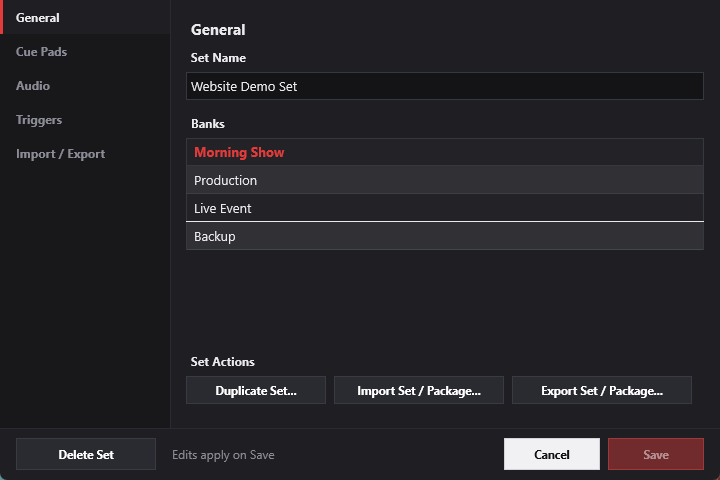 Set settings and Set-wide defaults.
General tab
The General tab is where you manage the Set itself:
- Rename the Set — give the Set a clear, recognisable name.
- Banks — a list of the Set's banks, each with a delete control so you can remove a bank you no longer need.
- Duplicate Set — make a complete copy of the Set to branch from or use as a starting point.
- Export — save the Set out as a portable package. See Packages for what export bundles and how to share it.
Cue Pads tab
The Cue Pads tab sets the Set-wide defaults that every bank and cue inherits:
- Play Mode
- Behaviour
- Concurrency
These give your whole show a consistent baseline. Each bank — and each individual cue — can still override them where you need something different. For what each of these controls actually does, see Playback behaviour and the Cue Editor.
Audio tab
The Audio tab holds the Set's Audio Output default — the Set-level output routing that cues inherit. Choose the Set default output here (master output or headphones), and every cue follows it unless you route a particular cue differently. For how routing works across the whole signal path, see Audio setup.
Import / Export tab
The Import / Export tab is for moving the whole Set in and out as a package — the place to "move this Set between CueCart workspaces or import package content into it":
- Import Set / Package… — bring package content into CueCart.
- Export Set / Package… — save this Set out as a portable package.
For what export bundles, the package formats, and how to share them, see Packages.
The unsaved-changes guard
CueCart looks after your work. If you try to start a new Set, open another one, or close the app while you have unsaved changes, CueCart warns you first so you can save before anything is discarded. You'll never lose edits to a closed Set without being asked.
If you've turned a quick edit into a keeper, just press Ctrl+S and carry on.