 CueCart
 The Media Library
Your imported media, organised inside CueCart and independent of disk layout.
Building · Updated 2026-07-24
The Media Library is CueCart's internal organisation of your media, kept separately from how the files happen to sit on disk. Once a track is in your Library, you can find it, organise it, and drag it onto a pad — no matter where the original file lives or how its folder is named on your drive.
Open the Library from the Library tab in the left sidebar.
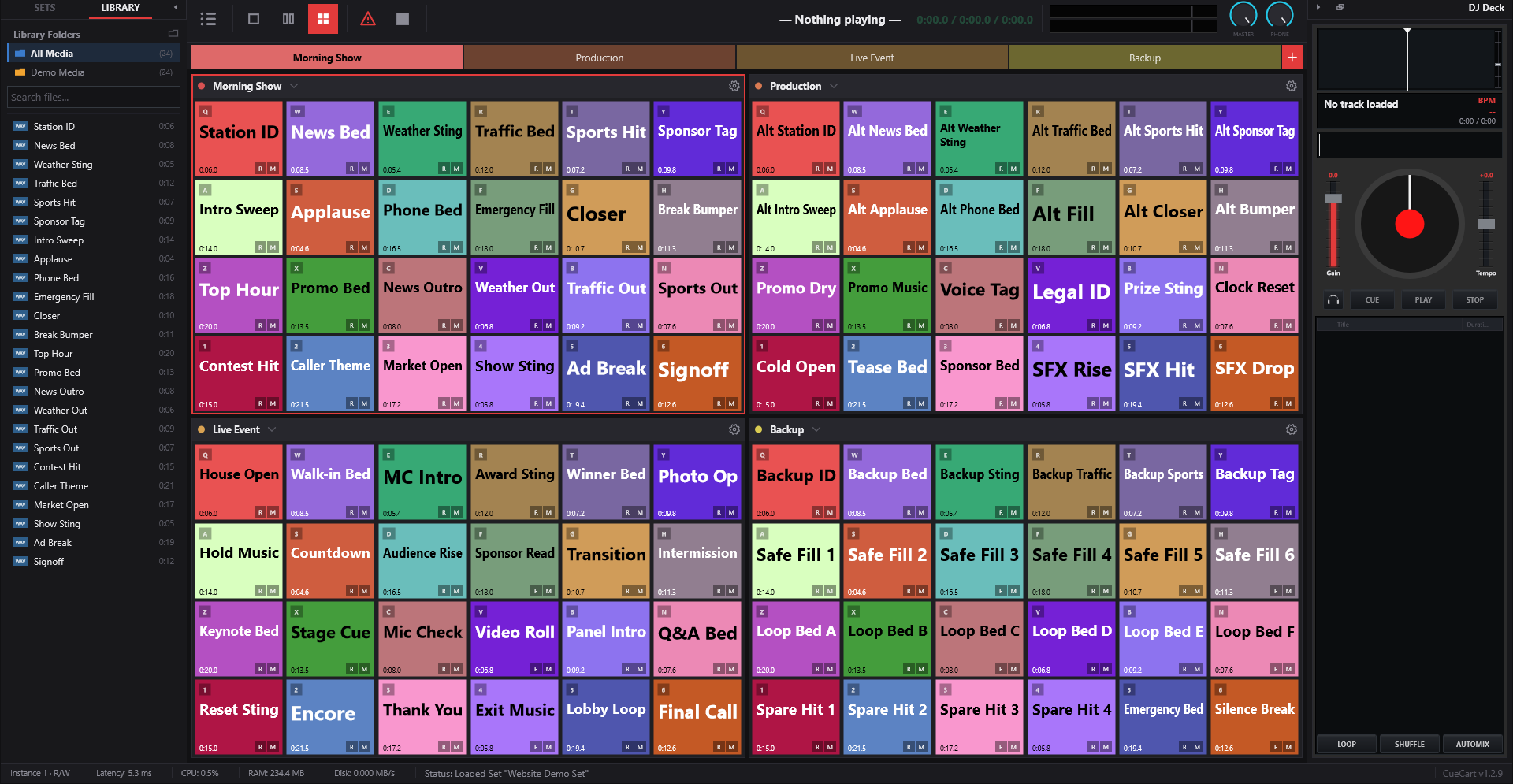 The Media Library beside a loaded cue wall.
What the Library is — and isn't
Think of the Library as CueCart's own home for your media, not a mirror of your file system. It's where your imported audio is gathered and organised in a way that suits your show, independent of the folder structure on disk.
A few things the Library is deliberately not:
- It is not a copy of your disk layout. How files are nested in Windows Explorer has no bearing on how they're organised here.
- It does not assign pads for you. Adding media to the Library never auto-fills a pad or auto-creates a bank — you stay in control of what goes where.
This separation is what keeps your show stable: your organisation lives inside CueCart, so it survives even when files move or folders get renamed.
Importing media
You build up your Library by dragging audio in from Windows Explorer. Drop a folder or a selection of files straight onto the Library pane and CueCart imports them.
- Drop a folder and its tracks come in grouped under that folder's name.
- Drop loose files (not inside a dropped folder) and they arrive un-grouped, collected under Uncategorized until you organise them.
CueCart imports the supported audio types and quietly skips anything else, so you don't have to pre-sort a folder before dropping it.
Supported formats
CueCart plays and imports WAV, AIFF, FLAC, MP3, Ogg Vorbis, and the AAC
family — .m4a, .aac and .m4b. Video files such as .mp4 are not
supported.
Library Folders
Library Folders are CueCart's own way to organise media — internal groupings keyed to your media, not folders on disk. The folder list runs down the left of the Library pane:
- All Media sits at the top and always shows everything in your Library.
- Uncategorized collects loose files that came in without a group.
- Any folders you create appear below.
You can:
- Create a folder with the + New Library Folder action at the top of the list, then give it a name.
- Rename a folder (right-click → Rename…, or press F2 on the selected folder).
- Remove a folder (hover and click the ✕, press Delete, or right-click → Remove…). CueCart asks you to confirm; removing a folder only drops the grouping — your media stays in the Library.
- Reorder folders by dragging them up or down the list.
To put media into a folder, drag Library assets onto the folder row — or drag them onto the file list while that folder is selected. You can also drag a Cue Pad straight onto a folder to add its media. Dropping onto All Media does nothing (it has no grouping of its own); a track can live in more than one Library Folder at once.
Dragging assets onto pads
The Library and your pads work hand in hand. To put a track on a pad, just drag the Library asset onto the pad you want. That pad is now ready to fire the moment you hit it — see Cue Pads for everything a pad can do once it's loaded.
Because the asset lives in your Library, you can drop the same track onto as many pads as you like, across as many banks as you need.
Missing media
Files move and drives change, and CueCart is built to ride that out. A missing source never stops a pad from playing when a local copy exists — your show keeps running rather than falling silent at the worst moment.
When some cues do point at sources CueCart can't find, the status bar shows a clickable Missing Media indicator. Click it — or choose Repair Missing Media from the title-bar / toolbar menu — to open the Repair Missing Media dialog, which lists every affected cue pad and gives you:
- Relink Selected… — point a single cue at the file's new location.
- Search Folder… — pick a folder and let CueCart hunt down matches for one or many missing cues at once.
- Ignore for Now — leave a cue as-is and clear it from the active list.
- Export Report… — save the full missing-media list to a file, handy for chasing files down on another machine.