 CueCart
 Banks & layouts
Organise pads into banks, switch between them live, and size each bank's grid to your show.
Your Show · Updated 2026-07-24
A bank is a named page of pads within your Set — for example Jingles, Beds or Music. You arrange your show across banks, then switch between them live. Because every cue is preloaded, moving between banks is gapless: there's no spin-up when a new page comes up.
Each bank carries its own grid size. A new bank starts at a comfortable 6×4 (24 pads) — a good single-glance size under pressure — but you can resize any bank to fit its content, from a tight 4×4 up to a wide 8×9. The size is remembered per bank and saved with the Set.
How banks fit together
- A Set holds up to 20 banks; a fresh Set starts with four empty ones.
- Each bank is its own page of pads, with its own name, colour and grid size.
- A Cue Pad lives in exactly one bank, in one slot.
- You switch the bank shown in a panel at any time — live or while editing.
Think of banks as the chapters of your show, and Cue Pads as the lines on each page.
The bank tab strip
Above the cartwall runs a strip of coloured bank tabs — one folder-style tab per bank, in show order. Each tab is filled with that bank's colour, so the strip reads as a colour map of your whole show; the active tab is shown at full brightness, the rest dimmed.
The strip is the fastest way to move around:
- Click a tab to switch the active bank to it.
- Double-click a tab to rename the bank inline (names cap at 20 characters).
- "+" at the end of the strip adds a new bank. It disappears once you hit the 20-bank ceiling.
- Right-click a tab for its menu: Bank Settings…, plus Import bank…, Export bank… and Export bank collection… for moving banks between workspaces.
- Ctrl+Alt+Click a tab to delete that bank, with a confirmation first. (A Set always keeps at least four banks; deleting the last few clears the bank and restores an empty default in its place.)
Tabs wrap to a second row automatically once you pass ten banks, so the strip never overflows.
Switch banks from the keyboard
F1–F12 jump straight to the first twelve banks — F1 is the first bank, F2 the second, and so on. Handy when you've laid your show out in order and want to flip pages without reaching for the mouse.
One, two or four panels
CueCart can show one, two or four bank panels side by side. The layout toggles in the toolbar switch between them:
- 1 panel — a single bank, large pads, maximum focus.
- 2 panels — two banks at once, ideal for beds on the left, stingers on the right.
- 4 panels — four banks in a grid, your whole show visible at a glance.
Each panel is independent. A header runs along the top of every panel, and on it is a dropdown to choose which bank that panel displays. Pick a different bank in any panel and the pads below reflow to that bank instantly — no need to leave the layout you're in.
Because each panel chooses its own bank, the same bank won't appear twice: a panel's dropdown hides banks already shown in the other visible panels, so you always see four different pages in the four-panel layout. If every other bank is already on screen, the dropdown offers + Add New to create a fresh bank and point the panel at it.
Bank colour
Every bank has a colour. It's the accent that identifies the bank at a glance — on its tab and panel header, and wherever the bank is named — so you can tell Jingles from Beds from a distance, mid-show.
By default colours are assigned automatically, so a new Set reads as a colour map rather than a wall of identical tiles. Bank Settings lets you choose Palette cycle, Rainbow or Shades of bank colour, and you can always pick your own colour for any bank instead. Colour is purely an organising aid; it never changes how a pad plays.
Bank Settings
Open Bank Settings from a tab's right-click menu, or click the gear on a panel header. It's organised into five tabbed pages, mirroring the app-wide Settings window — a list of pages on the left, the active page on the right, and a Save button in the footer. Changes apply when you click Save; Cancel backs out.
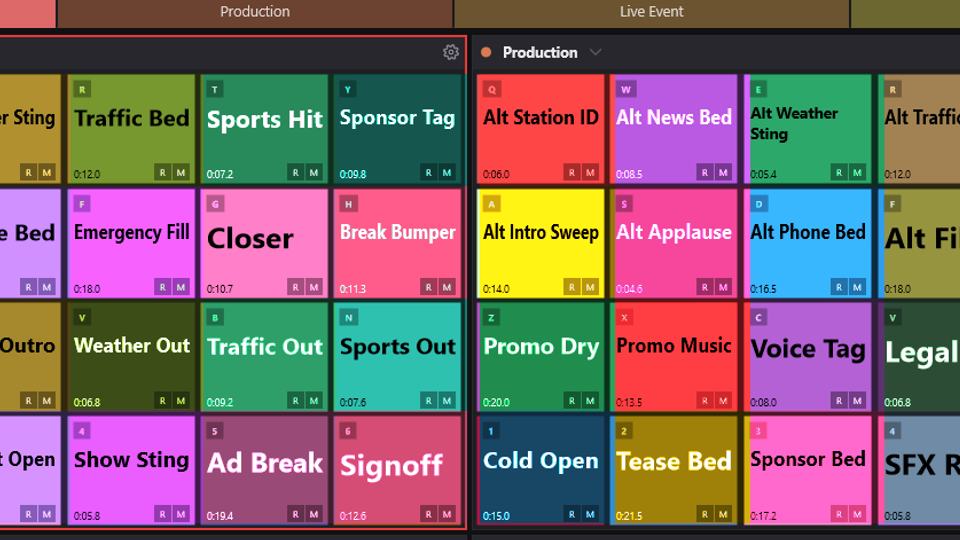 Bank colours and auto-colour modes make dense layouts readable.
General
Sets how this bank colours its pads, plus a few one-click housekeeping actions:
- Auto-colour mode — choose how newly filled pads pick a colour. Off uses the bank's default colour for every new pad; Palette cycle, Rainbow and Shades of bank colour spread a varied palette across the grid so the wall reads as a colour map.
- Recolour all pads — re-runs the chosen colour mode across every pad in the bank.
- Fill empty pads — drops blank colour-only placeholders into empty slots, so the bank's intended layout is visible before you've assigned audio.
- Clear all pads — empties the bank (with a confirmation first).
These actions apply to the bank straight away so you can see the result behind the open dialog.
Cue Pads
Sets bank-level playback defaults that every pad in this bank inherits — Play Mode, Behaviour and Concurrency. These override the Set-wide defaults for this bank only, and any individual pad can still override the bank in turn from the Cue Editor.
Setting a bank default is the quick way to make, say, an entire Beds bank loop and play one-at-a-time without touching each pad. For what these options mean, see Playback behaviour.
Grid
Sets this bank's grid size. Pick a preset — 6×4 (24), 4×4 (16), 8×4 (32) or 8×9 (72) — or choose Custom… to unlock the Rows and Columns steppers and dial in any size up to 16×16. A Total: N pads label and a live Preview update as you change values, and the cartwall behind the dialog reflows in real time so you can see the new layout before you Save. Larger grids switch to a tighter pad font automatically.
Resizing never deletes cues. Pads outside a smaller grid are simply hidden until you grow the grid back.
Audio
Sets the output-routing defaults for the bank — which output every pad in it feeds, and whether it's also sent to headphones for cueing. A bank either inherits the Set's routing or overrides it with its own, and the dialog shows which is in effect. Individual pads can still override the bank. See Audio setup for outputs and headphone cueing.
Import / Export
Moves banks between CueCart workspaces. Import Bank Package… brings a saved bank in, Export Bank Package… writes this bank out on its own, and Export Bank Collection… writes the whole Set's banks as one package. These are the same actions offered on a tab's right-click menu.
Next steps
- Cue Pads — fill the grid and give each pad its identity.
- Playback behaviour — Play Mode, Behaviour and Concurrency.
- Triggering & going live — fire banks and pads from the keyboard.